Separate a Wi-Fi problem from an internet problem
Compare one device, another device and an available wired connection before applying disruptive resets.
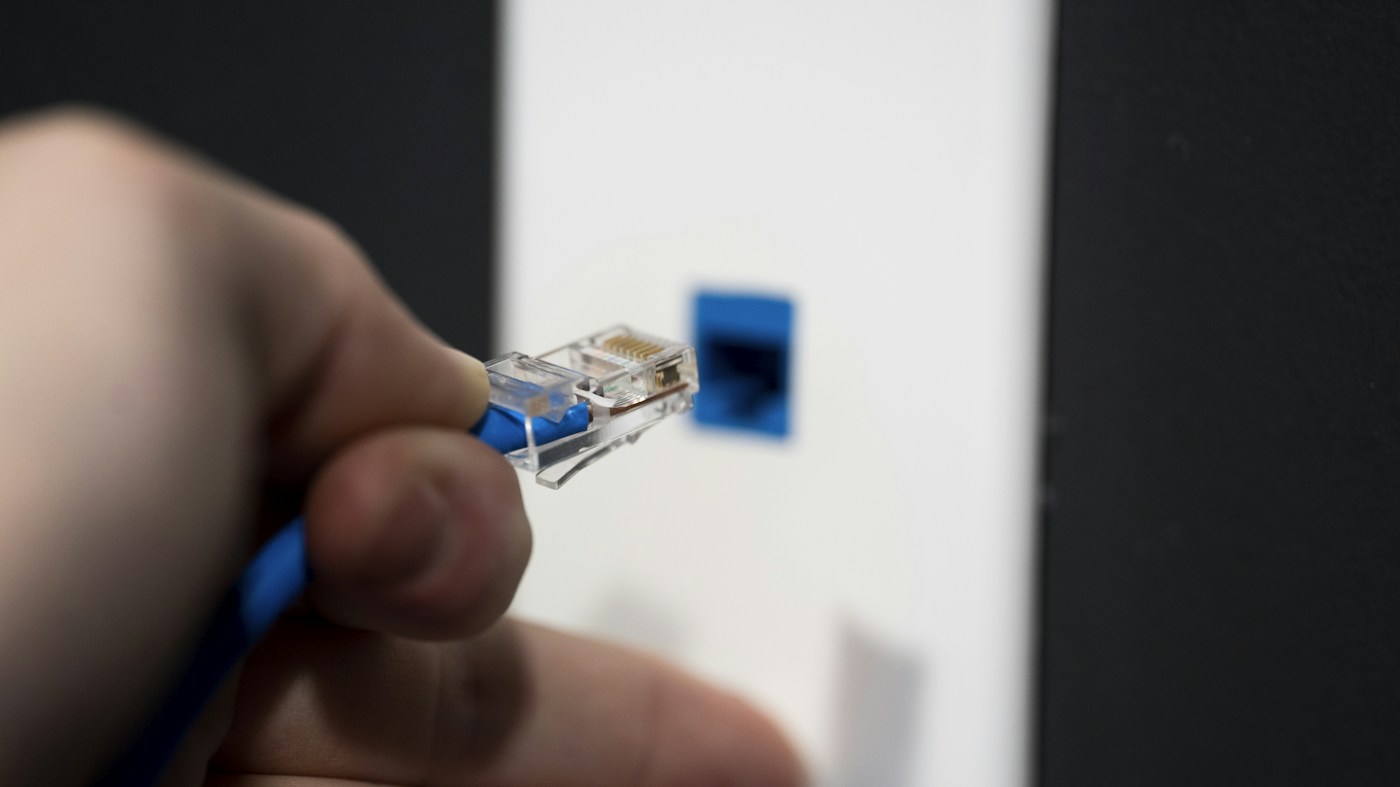
The phrase the internet is down can describe several different situations. One device may have lost Wi-Fi, a website may be unavailable or the whole household may be unable to reach online services. A small comparison can narrow the description before you restart equipment or erase useful settings.
Define the symptom first
Write what failed and what still works. Does the device show that it joined the wireless network? Can another ordinary online service load? Does the same task fail on a second device you own? Use the same approximate time window so that you are not comparing an earlier outage with a later recovery.
Avoid publishing screenshots containing account details, network passwords or other private information. For an initial support note, the task, device model, connection type and error wording are usually a more useful starting point.
Compare another route where available
If your equipment supports it and you have a suitable Ethernet connection, follow the manufacturer instructions to compare a wired connection with Wi-Fi. Microsoft's current Ethernet troubleshooting guidance describes checking the cable and correct router port, and comparing with another device or connection. Do not confuse a router's internet-facing port with a local connection port.
A successful wired test alongside a failed wireless test is useful evidence, but it does not automatically identify a specific defective component. Keep the conclusion narrow: one route worked under these conditions and another did not.
Change one thing at a time
Before a restart, consider everyone using the connection. A restart can interrupt calls, transfers or other work. Follow the provider's or manufacturer's sequence for the actual equipment rather than assuming a generic set of boxes matches your installation.
After one supported change, repeat the original task. Record whether the symptom changed before proceeding further. If several changes are applied together, it becomes difficult to know which mattered and harder to return to the starting arrangement.
Keep resets separate from basic checks
A full network reset is different from checking a cable or reconnecting to Wi-Fi. Microsoft's guidance treats network reset as a later step and explains that it removes adapters and settings, with possible consequences for other networking software. Read the relevant instructions and recovery requirements before considering it.
When basic comparisons do not resolve the problem, give support a concise summary: what failed, which devices were affected, which connection types were tested and what changed. That summary is more actionable than a long history of unlabelled speed tests. The purpose of troubleshooting is to reduce uncertainty systematically, not to perform every available reset in the hope that one will happen to work.
Troubleshooting reference, checked November 2026: Microsoft: fix Ethernet connection problems in Windows.