Map the boxes before changing the settings
A small connection diagram separates the jobs of a router, switch and wireless access point, even when they share one case.
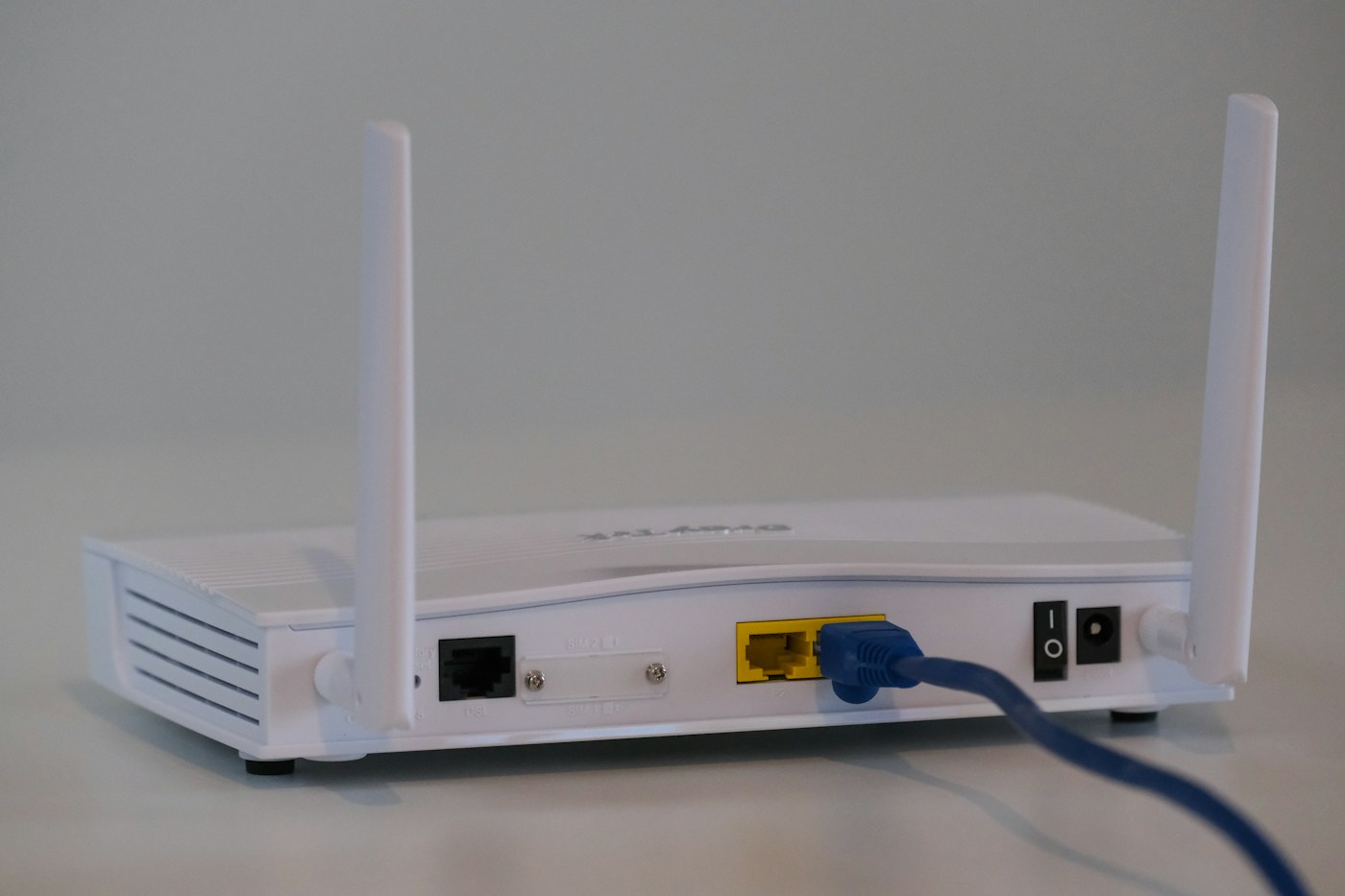
Home networking language can make one plastic box sound like several unrelated devices. Router, switch and access point describe different jobs, but domestic equipment may combine functions. A connection diagram helps you understand what you have before changing a setting intended for a different arrangement.
Begin with visible connections
Identify the equipment supplied by your internet provider and any devices you added. Read their model labels and official documentation. Draw each physical box, then trace the existing cables without disconnecting anything. Label the ports using the names printed on the equipment where practical.
Keep provider-owned equipment distinct from your own additions. A device's shape or number of antennas does not reliably identify all its roles. If you cannot establish what it does, mark the role as unknown and consult the relevant provider or manufacturer instructions.
Give each function a plain description
Cisco describes a router as connecting different networks, a switch as connecting devices within a network, and a wireless access point as providing wireless access to a network. These functional descriptions are more useful than assuming each role requires a separate box. Your equipment documentation should tell you which functions a particular product provides.
On the diagram, add short role labels beside each device. One box may need several labels. Do not change its operating mode merely to make the drawing look simpler; the drawing should represent the working installation rather than an idealised network you found online.
Trace one ordinary journey
Choose a laptop or other device you own. Mark whether it reaches the local network by Wi-Fi or an Ethernet cable and which equipment it connects through. Then follow the diagram towards the provider connection. This makes a later report such as only the wireless laptop has a problem much more precise.
Repeat with a printer or another local device if useful. Distinguish a local connection from successful internet access. The diagram need not explain every protocol to show that several devices share part of the same route.
Keep the diagram usable and private
Add model names and a date, but leave passwords, recovery codes and unnecessary account information out of a version you might share. Store any sensitive configuration details through your usual secure method. A support conversation normally benefits from the connection pattern, not a public copy of your credentials.
Update the diagram when equipment changes. Before following instructions that mention bridge, router or access-point mode, compare their assumed arrangement with your own. The map will not solve every fault, but it gives both you and a support adviser a clear starting point and reduces changes made to the wrong device.
Concept reference: Cisco: networking basics. Manufacturer documentation determines the functions of a particular product.